Using your intended scoring device, download the Island Browser using the link below:
https://getbrowser.datarecognitioncorp.com (copy and paste if link does not work)
Download and install the Island browser version appropriate for your device, as indicated by the site. If you cannot find where your download went, your browser will have a way to navigate to its "Downloads" folder through a button or menu option (this method varies by browser).
Open the Island browser and click "Start using Island". If you cannot find the program after installing, check your desktop (background) or use your system's Search feature.
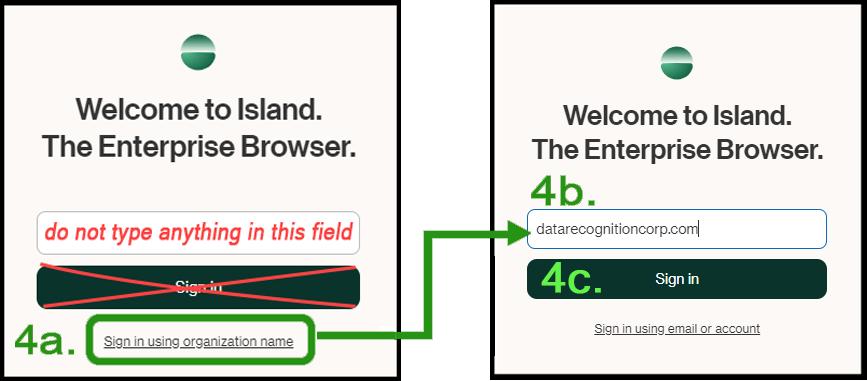
- Click the "Sign in using organization name" link underneath the "Sign in" button.
- In the field which says "Type your organization name", type or copy/paste the following: datarecognitioncorp.com
- Click "Sign in".
If you do not see "DRC INSIGHT" at the top of the login screen, do not proceed. Instead, repeat step 4 until you see the DRC INSIGHT login page pictured here:
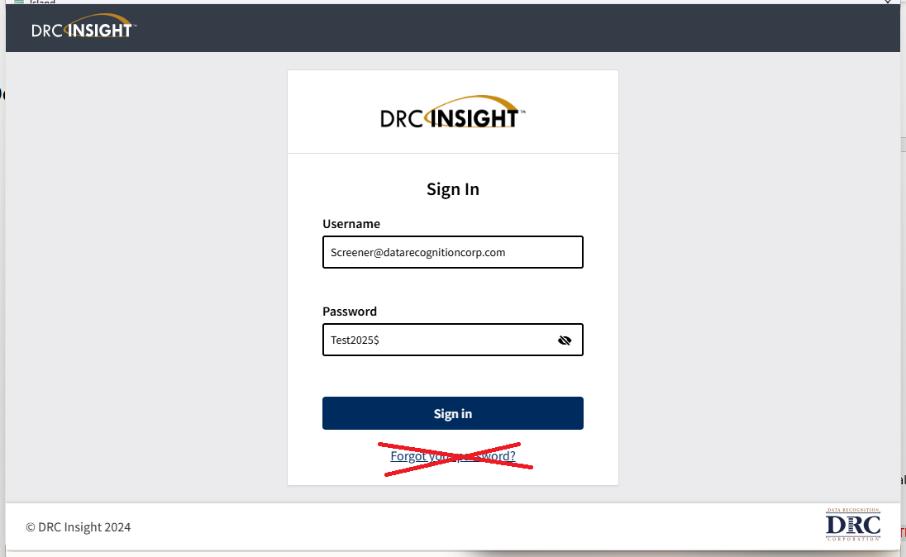
When the DRC INSIGHT page loads, sign in with the following credentials:
Username: Screener@datarecognitioncorp.com
Password: Test2025$
DO NOT CLICK FORGOT PASSWORD OR RESET THE PASSWORD FOR THIS ACCOUNT.
If the password does not work, please try again by copying and pasting it into the login page. If it still does not work, please wait at least 1 hour and then try again.
The Island browser will open DRC's Temporary Employee Work Requirements. Read through to the bottom and acknowledge your compliance as prompted:
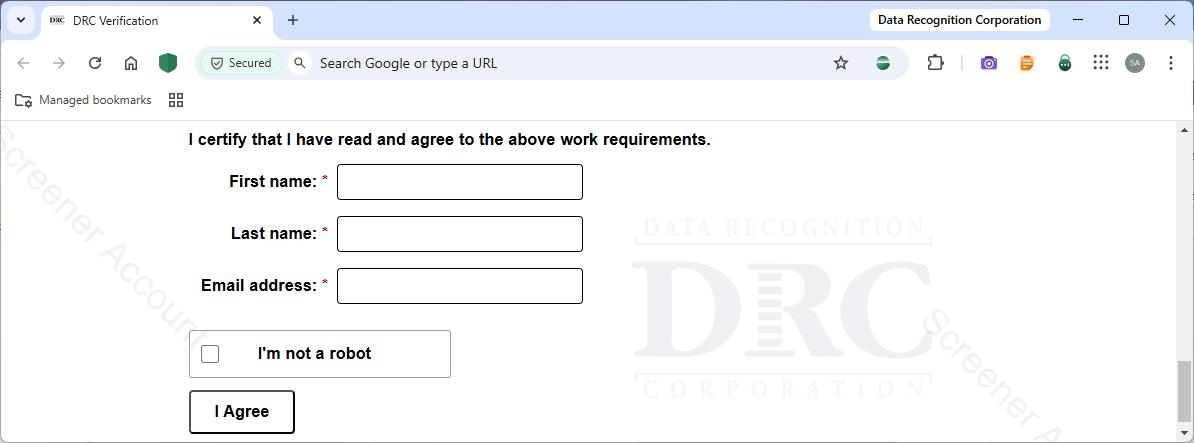
Island will check for compliance and let you know your results. If anything is found in conflict with the Temporary Employee Work Requirements, you will be prompted to address the issue and retry.
Once you have passed, you will see a message congratulating you for your success. You can close the DRC Island browser and refer to your communication from HR for further information.